How to Make an Animated GIF
Explore how to make an animated GIF using Krikey AI Animation tools and 3D GIF Maker. Export transparent GIF files with custom characters and free animations.
You've probably seen animated GIFs everywhere—from social media posts to marketing campaigns—and wondered how to create your own. Making an effective animated GIF isn't just about converting a video clip; it's about understanding the right tools, mastering key techniques for smooth motion, and knowing when to use them strategically. Whether you're looking to enhance your content or boost engagement, there's a specific approach that'll transform your static visuals into compelling, shareable animations that get noticed.
This guide explains how to make an animated GIF, whether you’re converting a video clip, using design software like Photoshop or Illustrator, or creating GIFs online with AI-powered tools like Krikey AI.
Key Takeaways on How to Make an Animated GIF
- Learn how to make an animated GIF using online tools, animation software, or AI-powered platforms
- Online GIF makers like Krikey AI are ideal for creating custom animated characters and transparent GIFs quickly
- Select high-contrast visuals and keep GIFs between 2–6 seconds for smooth looping
- Optimize file size by limiting dimensions to under 500px wide and reducing colors to 128 or fewer
- Use 10–15 frames per second and export files under 2MB for fast web performance
What Is an Animated GIF?
An animated GIF is a short, looping animation made from video clips, image sequences, or animated characters that plays automatically without sound. Animated GIFs are commonly used on websites, social media, and messaging platforms because they load quickly and communicate ideas or emotions instantly. Creating an animated GIF typically involves trimming content to a few seconds, optimizing frame rate, and compressing file size for fast performance. With AI-powered tools like Krikey AI, creators can generate animations and export optimized animated GIFs without manual frame-by-frame editing.
Tools and Software
You'll need the right tools to create your animated GIF, and there's a wide range of options available depending on your skill level and budget.
Online GIF makers offer the quickest solution for beginners, while desktop software and mobile apps provide more control over your creations.
For advanced users, dedicated animation software and image editing tools can produce professional-quality results with extensive customization options. There has also been a rise in high-quality AI animation tools that can help you make customized GIFs with motion capture animation.
Online GIF Makers
When creating animated GIFs, online GIF makers offer the most accessible solution. These browser-based tools allow you to create GIFs instantly without downloads or installations.
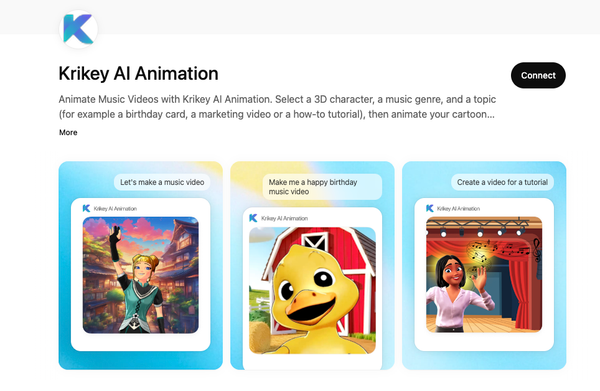
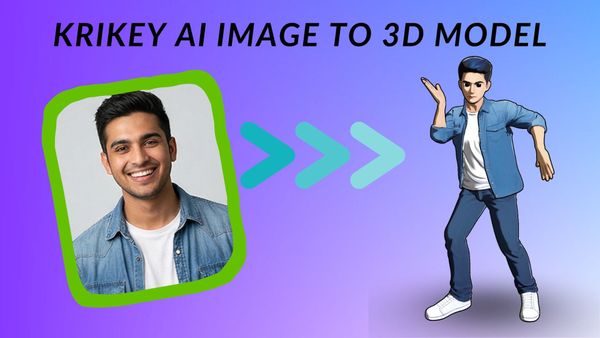
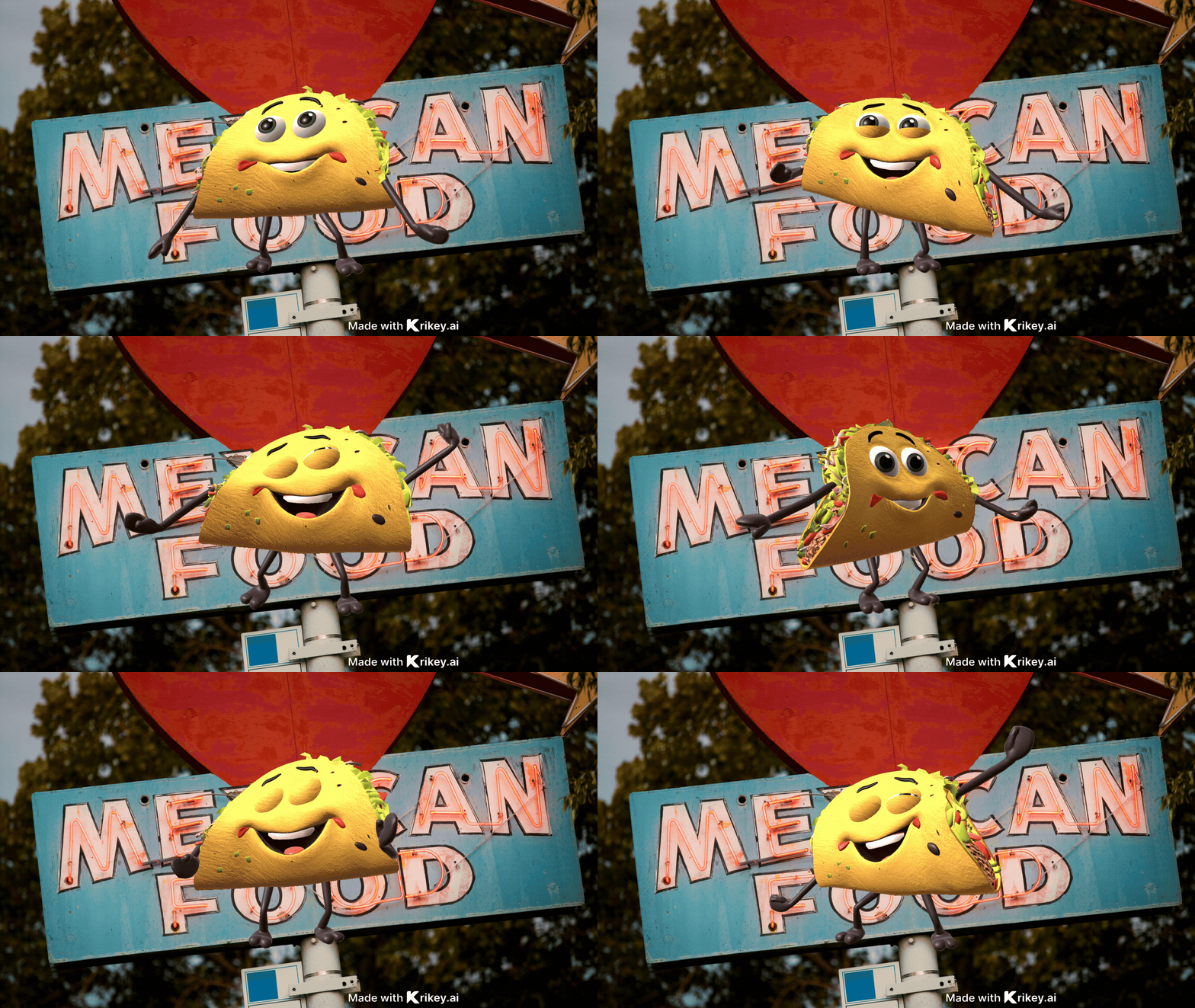
Krikey AI’s GIF maker enables you to customize a character, animate it, and export a GIF within seconds. You can create fun GIFs such as animated tacos for Taco Tuesdays GIFs, cartoon mascots, seasonal characters like dancing skeleton GIFs, or custom school and brand mascots by uploading your own assets.
This approach is ideal for creators who want professional-looking GIFs quickly without technical complexity.
Animation Software
AI animation software provides more creative control while remaining easy to use. With tools like Krikey AI, you can access GIF creation features on desktop or mobile directly through a web browser—no app installation required.
You can work with timelines, layers, video backgrounds, and character customization, then export animated GIFs optimized for web use. Free trials allow creators to experiment with the transparent GIF maker before committing, whether they’re building marketing content, lesson materials, or social media assets.
Techniques and Tips
Once you've selected your software, you'll need to master several key techniques to create professional-looking animated GIFs.
Pay close attention to timing adjustments, text placement, and export settings to guarantee your final GIF loads quickly and displays correctly across different platforms.
Choosing the right images or video clips
Before you start creating your animated GIF, you'll need to select the right source material that'll translate well into this format.
- Choose high-contrast content - Select clips with clear subjects and minimal background clutter to guarantee your GIF remains visually appealing when compressed.
- Keep it short - Aim for 2-6 seconds of footage to create a manageable file size while maintaining smooth animation.
- Focus on repetitive actions - Look for loops, gestures, or movements that work well as continuous cycles in your GIFs.
- Consider frame rate - Higher frame rates produce smoother motion, but they also result in larger files, so balance quality with practicality.
When using tools like Krikey AI, you can generate or preview animated scenes quickly, making it easier to test which visuals loop best before exporting your final GIF.
Using layers and frames effectively
Now that you've selected your source material, you'll need to master the building blocks of animation: layers and frames. Each layer represents a single frame in your sequence.
Using the rule of thirds in your frame, find the best position for your character and maintain consistent positioning to avoid jarring jumps. Adjust the transition time between clips by overlapping them more or less to control animation speed—shorter overlap create faster transitions, while longer overlaps slow transitions down.
Adding text and effects
Text overlays and visual effects can transform your basic animated GIF into a compelling piece of content that captures attention and conveys your message more effectively.
Add captions, titles, or call-to-action text that complements the movement of your animation. Most GIF creators offer built-in text tools with customizable fonts, colors, and positioning options. You can choose from a variety of animated text options in the Krikey AI GIF editor.
Consider using a template approach, where you create a consistent style for your brand's social media presence. Many platforms also provide effect libraries with filters, stickers, and visual enhancements that can be applied consistently across GIFs.
Remember that Instagram and other social media platforms favor clean, readable text that doesn't overwhelm your animation.
In AI-based tools like Krikey AI, layers and frame timing are managed visually, making it easier to adjust motion and positioning without manual frame-by-frame edits.
Exporting and optimizing Animated GIFs for web use
Once you've finished creating your animated GIF, the export process determines how well it'll perform across different platforms and devices. Proper optimization guarantees faster loading times while maintaining visual quality.
- Choose appropriate dimensions - Keep your GIF under 500px width for ideal web performance and mobile compatibility.
- Reduce color palette - Limit colors to 128 or fewer to markedly decrease file size without sacrificing quality.
- Optimize frame rate - Use 10-15 frames per second for smooth animation while keeping file sizes manageable.
- Compress strategically - Export at medium quality settings and aim for files under 2MB for best web performance.
How to Make an Animated GIF from a Video Clip
To make an animated GIF from a video clip, choose a short segment with clear movement and trim it to a few seconds. Convert the clip into a looping GIF while adjusting frame rate and dimensions to maintain smooth motion.
Instead of manually editing video frames, creators can use AI animation tools to generate motion-based scenes and export them directly as optimized GIFs.
How to Make an Animated GIF Online
If you want the fastest way to create GIFs, online tools are the easiest option. Browser-based platforms allow you to customize characters, animate scenes, and export transparent animated GIFs online without advanced technical setup or software downloads.
Applications and Uses
Now that you've mastered the technical aspects of creating animated GIFs, you'll discover they're incredibly versatile tools with applications spanning multiple industries and purposes.
You can leverage them for social media marketing campaigns, enhance your digital art projects, streamline online communication, create engaging educational content, or simply entertain audiences with memes.
Understanding these diverse use cases will help you choose the right approach and optimize your GIFs for maximum impact in your specific context.
Social Media Marketing
Since animated GIFs capture attention more effectively than static images, they've become essential tools for social media marketing campaigns.
You'll find GIFs boost engagement rates, increase brand awareness, and help convey complex messages quickly. They're perfect for showcasing products, announcing promotions, or adding personality to your content.
Here are the key benefits for your marketing strategy:
- Higher engagement rates - GIFs receive 2x more clicks than static images
- Cost-effective content - Create multiple variations without expensive video production
- Universal compatibility - Work across all major social platforms
- Emotional connection - Convey humor, excitement, or relatability instantly
Digital Art and Design
While social media thrives on animated GIFs, the digital art community has embraced them as a legitimate medium for creative expression.
You can create stunning pixel art animations, cinemagraphs with subtle motion, and abstract visual loops that captivate viewers. Digital artists use GIFs to showcase character animations, demonstrate artistic techniques, and build online portfolios.
You'll find them perfect for storytelling through sequential frames, creating mood boards with movement, and experimenting with color shifts. The format's accessibility makes your art instantly shareable across platforms, while its looping nature creates mesmerizing experiences that traditional static images can't achieve.
Online Communication
Beyond artistic expression, animated GIFs have transformed online communication by adding emotional depth and personality to digital conversations.
They've become a universal language that transcends text limitations, allowing you to express complex emotions instantly.
- Social Media Engagement - You'll capture attention faster than static images, increasing likes, shares, and comments across platforms like Twitter, Instagram, and Facebook.
- Messaging Enhancement - You can convey tone and emotion that plain text often misses, making conversations more engaging and preventing misunderstandings.
- Professional Communication - You'll explain concepts quickly in presentations, emails, and tutorials through visual demonstrations.
- Brand Marketing - You can create memorable, shareable content that humanizes your brand.
Animated GIFs created with tools like Krikey AI make it easy to add personality and clarity to everyday communication without relying on lengthy explanations.
Educational Content Creation
Moving from casual communication to the classroom, animated GIFs have transformed how educators create and share learning materials. You can demonstrate complex processes step-by-step, making abstract concepts tangible for students.
Create GIFs showing a cartoon teacher or use GIFs in your meet the teacher template for back to school. You can also use GIFs in your animated book report projects as a student. They're perfect for breaking down complicated concepts into digestible visual chunks.
You'll find GIFs particularly compelling for language learning, as they showcase pronunciation through mouth movements and grammar rules through animated examples. Try the Krikey AI Text to Speech tools to explore translating your videos to different languages for varied mouth movements in GIFs.
Students retain information better when it's presented visually and repeatedly. Your educational content becomes more engaging and memorable with the strategic implementation of GIFs.
Entertainment and Memes
Why do certain GIFs spread across the internet like wildfire while others fade into obscurity?
You'll find that successful entertainment GIFs tap into universal emotions and relatable moments. They're perfectly timed, easily shareable, and capture the cultural zeitgeist.
To create viral-worthy entertainment GIFs:
- Choose trending moments - Extract trends from current events.
- Perfect your timing - Keep loops between 2-6 seconds for maximum impact and shareability.
- Add reaction value - Focus on expressive faces, dramatic gestures, or comedic timing that others can use as responses.
- Optimize for platforms - Size your GIFs appropriately for Twitter, Discord, or messaging apps.
How to Make an Animated GIF Using Krikey AI (Step-by-Step)
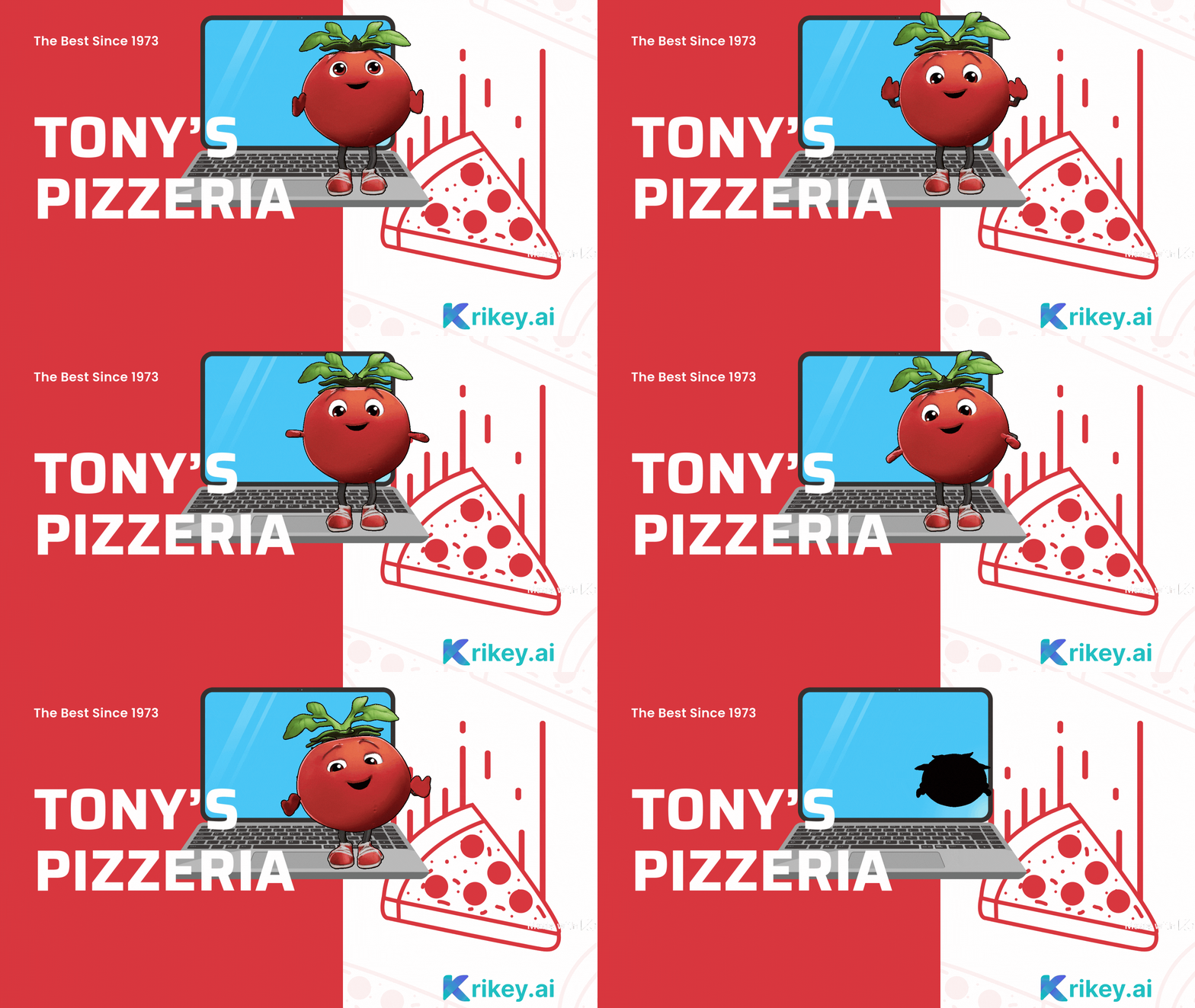
If you’re learning how to make an animated GIF, Krikey AI simplifies the process by letting you generate animation from a prompt and export an optimized GIF in minutes. Here’s how it works.
Step 1: Type a Prompt
Start by typing a prompt that describes what you want to animate. This can include the character, action, or mood of the GIF. Krikey AI uses your prompt to generate an animated scene, so you don’t need to upload footage or build frames manually.
Step 2: Generate the Animated Scene
From your prompt, Krikey AI automatically creates an animated character or scene with motion applied. This gives you an instant preview of how your GIF will look before any manual adjustments.
Step 3: Customize the Animation
Edit the animation by adjusting character appearance, movement, timing, and expressions.
Step 4: Export as an Animated GIF
Export your animation as a GIF. Krikey AI automatically optimizes dimensions, frame rate, and file size so your animated GIF loads quickly on websites, social media, and messaging platforms.
You've now mastered the basics of creating animated GIFs, from selecting high-contrast content to optimizing for web use.
Frequently Asked Questions on how to make an animated GIF
These are frequently asked questions on how to make an animated GIF.
How to make an animated GIF from a video clip?
To make an animated GIF from a video clip, start by selecting a short segment with clear motion and trim it to 2–6 seconds. Convert the clip into a looping GIF, then adjust frame rate and dimensions to balance smooth motion with file size. AI-powered tools can simplify this process by generating motion-based scenes and exporting optimized GIFs without manual frame-by-frame editing.
How to make an animated GIF on Photoshop?
Photoshop allows you to create animated GIFs by importing video frames or layered images into the Timeline panel and exporting them as a looping animation. This method offers detailed control over frames and timing, but it can be time-consuming and requires manual optimization for file size and performance.
How to make an animated GIF in Illustrator?
Illustrator is best used for designing individual vector frames rather than animating motion directly. To make an animated GIF in Illustrator, designers typically create separate frames and then animate and export them using another tool. This workflow is more manual compared to platforms that handle animation and export in one place.
How to make an animated GIF online?
The easiest way to make an animated GIF online is by using a browser-based animation tool. Online platforms allow you to upload or generate animations, customize motion and timing, and export optimized GIFs without installing software. Tools like Krikey AI make it possible to create animated GIFs online quickly, even for beginners.