How to make a Slack emoji with AI animation tools
Learn how to make a slack emoji with Krikey AI Animation tools. The slack emoji maker lets you customize characters and animations to export transparent GIF slack emoji. Share a slack emoji and learn how to add a custom slack emoji.
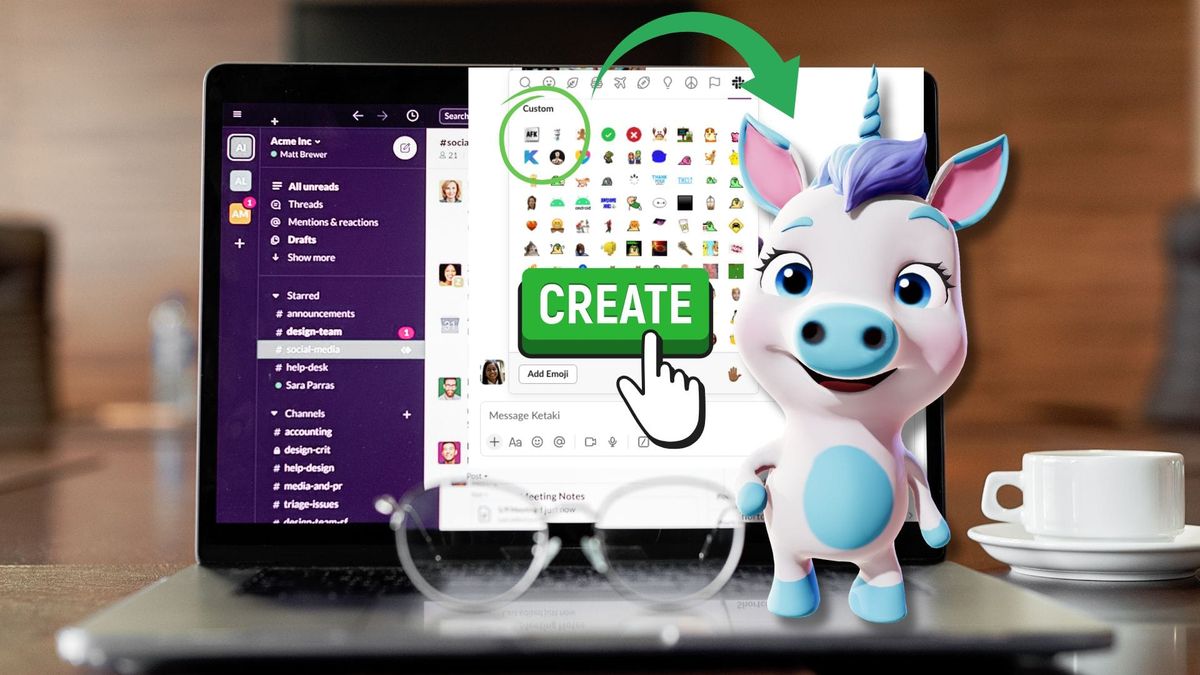
Key Takeaways about how to make a Slack emoji:
- Creative Control Over Team Branding: Unlike using generic internet stickers, Krikey AI allows teams to create custom "cartoon" Slack emojis by selecting specific characters and matching them with a vast library of motion-capture (mocap) animations. This empowers marketing teams to build internal branding that features their own mascots or unique team-specific jokes.
- Simplified Technical Workflow: The tool streamlines the traditionally difficult process of creating transparent animated emojis. By using the "Background Removal" feature during the GIF export, users can instantly generate professional-looking emojis without needing advanced video editing or graphic design skills.
- Optimization for Slack Requirements: The article provides a clear technical roadmap for meeting Slack’s strict emoji constraints (128x128 pixels and under 128kb). With Krikey AI, you can resize files, ensuring the custom animations are perfectly formatted for a seamless upload to any Slack workspace.
What is a Slack Emoji?
In its simplest form, a Slack emoji is a small visual icon used within the Slack communication platform to add personality, tone, and efficiency to workplace messages. Where Krikey AI comes in is with custom Slack emojis, which is all about personalized images (for example, brand mascots) or animated GIFs that speak specifically to your team culture. Everyone is in on the inside joke.
Do you need to make a custom slack emoji for your team? In this article I will walk through how our team made a custom slack emoji using AI animation tools. Slack emojis are like regular emojis but better - they are part of your internal branding and team bonding.
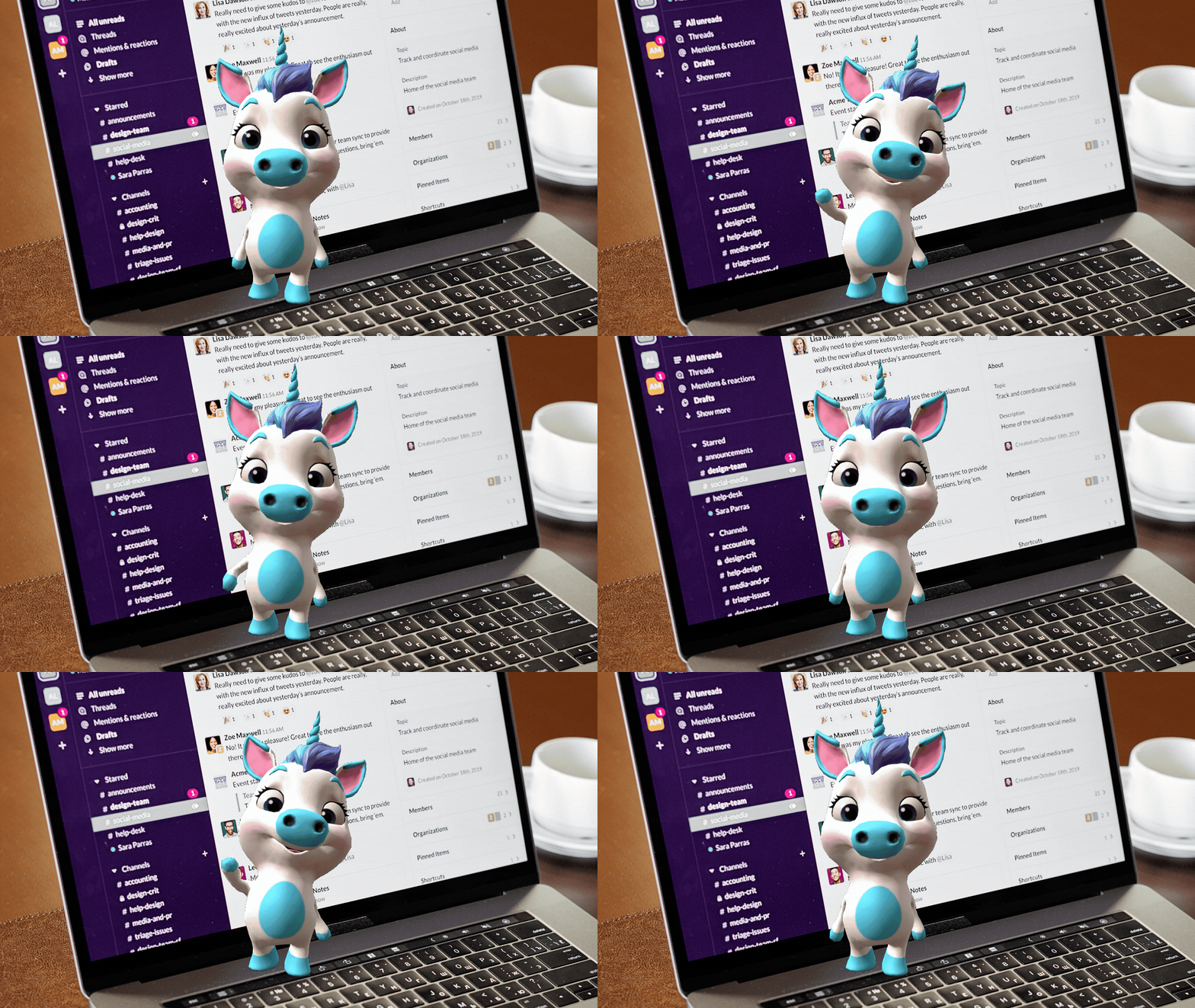
Slack emoji maker powered by AI Animation
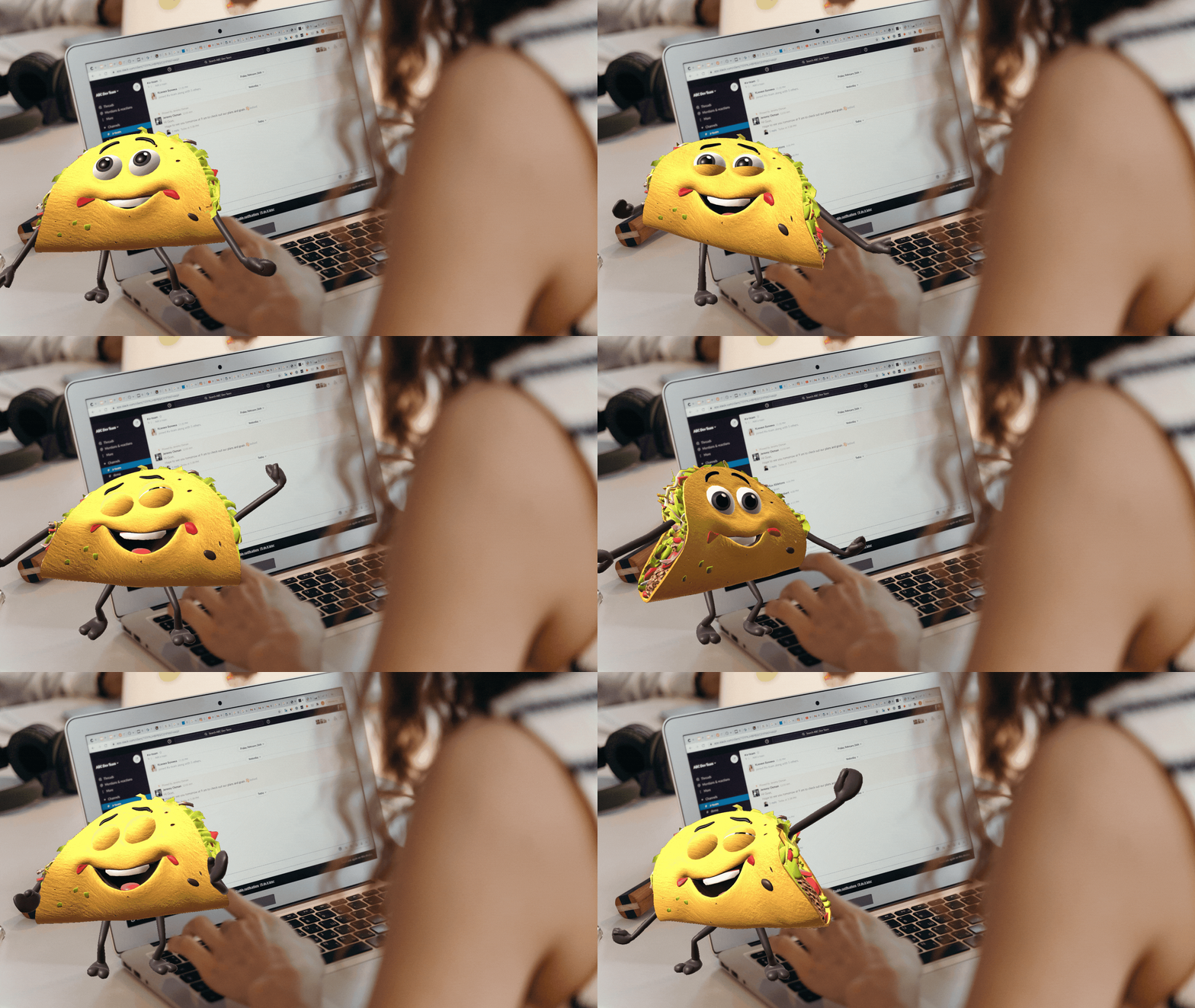
As a member of the marketing team, it's not unusual to get requests like this: can you make a cartoon taco Slack emoji for our team today? Previously this was really hard to do. I would usually have to go to Giphy or find a random sticker somewhere on the Internet and then try to resize it and upload to slack. I usually had no creative control over how it looked or what it was doing. I wanted a better slack emoji maker.
With Krikey AI I was able to customize a character and choose from a large library of free mocap animations to make a super cool slack emoji. Need a character doing the Dougie or Scottish highland dancing - want to make my own dance animation? I can do all of that now with the dance generator tools and animation library in the Krikey AI video editor. All I have to do is choose a custom character and animation, then export a GIF with transparent background. If I want to get fancy, I can change the camera angles, facial expressions, cartoon hands and lighting.
How to make a Slack emoji using Krikey AI
Here is how to do it in three easy steps using the Krikey AI Slack Emoji Maker:
- Select Your Character and Motion: Open the Krikey AI video editor and choose a character from the library or create your own brand mascot. Click Create and type in a text prompt. Then, go to the Animations tab and select a movement—like a dance, a wave, or a celebration—to bring your emoji to life.
- Export as a Transparent GIF: Click the Download button at the top right. In the dropdown menu, select GIF as your format and make sure to check the box for "Background Removal." This ensures your emoji has a clean, transparent background that looks professional in both light and dark modes on Slack.
- Resize and Upload to Slack: Ensure your file is 128 x 128 pixels and under 128 KB (you can use Canva or an online compressor if needed). In Slack, click your workspace name, go to Settings & Administration > Customize, click the Emoji tab, and then Add Emoji to upload your custom creation.
How to share a slack emoji
Once ready, I went to the top right and clicked download or share. In the drop down menu I chose GIF, the aspect ratio and checked the box for background removal. After I got the GIF on my desktop I could check the file size. If it was right for slack, I could upload it right away, if it wasn't then I would downsize it or take it to Canva and downsize the GIF there. When the GIF file was the right size, I could upload to slack and share the slack emoji with my team.
Slack emoji dimensions and how to add an emoji to slack
Slack emoji dimensions require that the GIF file be 128 x 128 pixels. If your GIF file is larger than this, I recommend opening a Canva project in the custom size 128 x 128 pixels. You can upload your GIF from Krikey and then export it from Canva to bring the file size down. You can also use the slider bar to reduce the file size to be less than 128kb which is the requirement for a slack emoji.
How to add a custom Slack emoji
Once you have your custom slack emoji created in the Krikey AI tool, you can download it and prepare to take it into your slack workspace. You should check with the admin of your slack workspace to ensure it is ok to add a custom slack emoji and work with them to introduce the slack emoji to the team. You will need to go to slack and click on your Workspace name and then Customize. Click the emoji tab and then the add button. Then you will be given the option to upload your custom slack emoji.
Final thoughts on slack emoji maker tools
Finding a slack emoji maker tool was a challenge but the Krikey AI tool enabled me to customize a character, choose an animation and export a transparent GIF with background removal. These features combined are really powerful in an emoji maker tool.
Frequently asked questions (FAQs) about Slack emoji maker tools
These are frequently asked questions about Slack emoji maker tools.
How to make a cartoon Slack emoji for my team?
To make a custom Slack emoji, first go to the Krikey AI Video editor and select file, blank project. Then click on the character icon to choose or create your custom character. Then click on the animation to swap it out for the animation of your choice from the library. Then you can download your GIF with transparent background to share to Slack.
What are the Slack emoji dimensions?
Slack emoji dimensions require that a GIF file be 128 x 128 pixels and less than 128kb. You can export custom Slack emojis from the Krikey AI emoji maker.
How to add a custom Slack emoji?
When you have created your custom Slack emoji in the Krikey AI tool you can download GIF and then save to your desktop. When ready, upload to your Slack workspace. Be sure to check with your Slack admin for permission before adding a new Slack emoji.
How do I animate my custom Slack emoji?
Krikey AI has a large library of free mocap animations to make unique Slack emojis. You can make a dance Slack emoji and custom brand mascot Slack emoji.
Where do I make a custom slack emoji?
With Krikey AI it is very easy to make custom Slack emoji for your team workspace. You can choose or create a custom character, choose an animation and then download GIF with transparent background. You can then upload your custom Slack emoji to your team workspace to share.