Best Vyond Alternatives: Krikey vs Vyond Animation
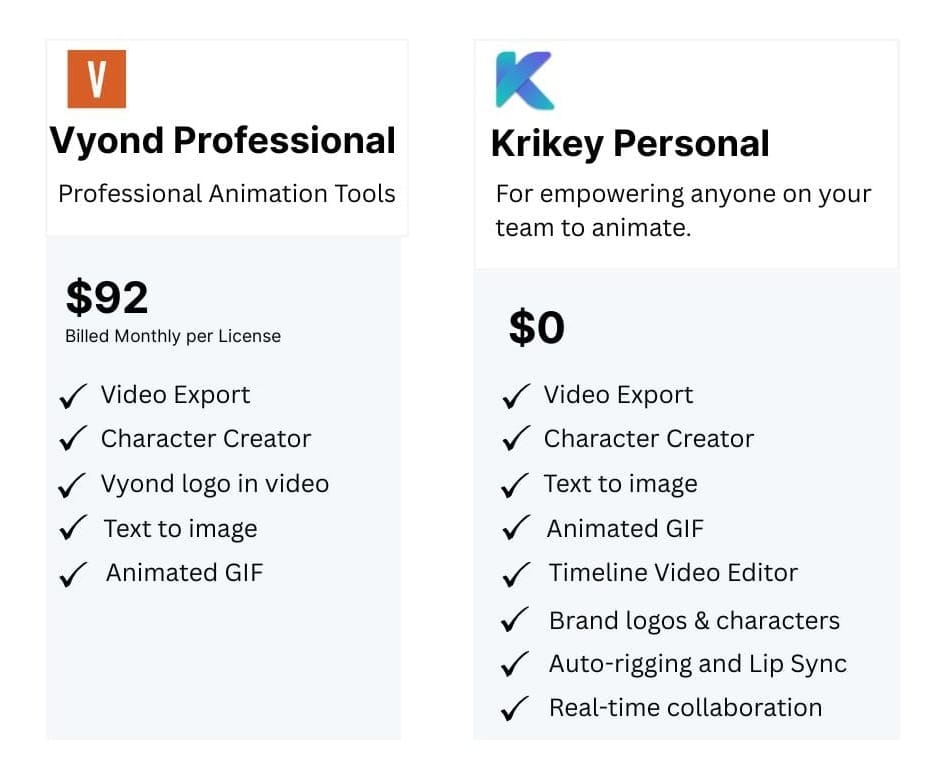
Looking for Vyond alternatives because Vyond pricing is too high? Use Krikey AI Animation to save time and money on your next animated video. Krikey leads the next generation of Vyond competitors with free animation software for all.
Key Takeaways about Vyond Alternatives
Why Consider a Vyond Alternative?
- Vyond has been industry-standard for years, but new AI-powered tools offer better value and capabilities
- High Vyond pricing drives teams to search for "Vyond free," "Vyond coupon code," and competitors
- Modern animation needs require more flexibility than legacy platforms provide
What Krikey AI Offers as a Vyond Alternative:
- Free to start - No subscription required for basic features (vs. Vyond's $1000+ annual cost)
- 3D animation - True 3D characters and environments (Vyond primarily 2D)
- Custom character creation - Generate and animate any brand character, not limited to Vyond's style templates
- AI-powered workflow - Create animations in minutes instead of hours
- Full creative control - Lip-sync dialogue in multiple languages, custom facial expressions, hand gestures, camera angles, lighting
Key Advantages Over Vyond:
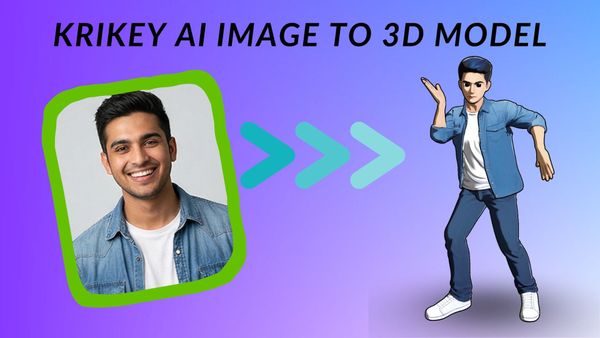
- Character flexibility - Krikey AI converts custom character images into animated 3D models; Vyond locks you into their character style library
- Collaborative editing - Real-time co-editing via shareable links (no version control chaos or large file sharing)
- Speed - AI automation dramatically reduces production time
- Export options - MP4, FBX, GIF, transparent backgrounds, social media formats (Instagram, YouTube, LinkedIn, Facebook ads)
Krikey AI Animation, a Vyond Altenrative, is Best For:
- HR training videos
- Presentation videos
- Teams needing custom brand characters
- Multi-language content creation
- Collaborative video projects
Bottom Line: Stop searching for Vyond coupons. Switch to a free Vyond alternative that offers 3D animation, AI-powered speed, unlimited character customization, and collaborative editing tools built for modern teams.
The Free Vyond Alternative Built for 3D Animation
Vyond has been used by teams for decades and it was revolutionary for unlocking animation tools in the beginning. Many readers probably started on Vyond studio and have dabbled in the Vyond character creator or even used Vyond characters and Vyond animation in your projects.
Now there's a new free animation software that can save your team time and money – and give you full creative control! Krikey AI Animation tools empower anyone on your team to animate in minutes. Create custom brand characters, make your own animations, add lip synced dialogue, 3D backgrounds, facial expressions, hand gestures, camera angles, lighting and more.
The Best Vyond Alternative for Teams Seeking Better Value & 3D Animation
If your search history includes "vyond alternative," or "vyond pricing," then it's time to explore other animation software free options! What's been done for years isn't always the right choice for the next generation of creativity. With new AI tools on the market, you can go stop searching for Vyond coupon code or Vyond coupons – and make the switch that's better for your team and budget.
With Vyond character creator you are stuck with a particular style of character that they offer. You may be able to customize it a little bit using the Vyond characters or Vyond studio tools but you can't get it to match the brand vibe you are looking for. With Krikey AI character creator you can generate your own character image and covert it to a 3D model to animate. This process enables you to animate any custom character and add lip synced dialogue in multiple languages. This is great for HR training videos, presentation videos and more.
Vyond Alternative with Collaborative Editing: No More Version Control Chaos
With Krikey AI Animation software's collaborative video editing tools you can edit your animated videos together with co-workers or friends. Just share the video editor link and invite a collaborator to edit with you. It's simple and easy. No heavy hard drives or large files to share back and forth. No need to download version 12 and share via email. Now everyone can edit together and see a video project before you get to final export.
What do you get to export? You can export video files MP4, FBX files, GIFs, images with and without transparent background, file formats for Instagram, YouTube, LinkedIn, Facebook ads and more. Krikey AI Animation tools are built for your team to succeed. Save time and money and regain your creative control.
See how one marketing agency used Krikey AI to get 30 million views on an animation marketing campaign. And how this trucking company used Krikey AI to make explainer videos for their business.
How to Use Krikey AI (the best Vyond alternative): Step-by-Step Guide
Create professional 3D animations in minutes with this Vyond alternative—no animation experience required.
Step 1: Sign Up for Free
Getting started with Krikey AI:
- Visit Krikey.ai
- Click "Sign Up" or "Get Krikey Free"
- Create account using:
- Email and password, OR
- Google sign-in
- Verify your email (check inbox/spam)
- Complete quick profile setup (optional but recommended)
No credit card required. Start creating immediately.
✅ Vyond comparison: Unlike Vyond's 14-day trial limitation, Krikey AI offers a genuinely free plan with no time limit.
Step 2: Choose Your Character
Two ways to get your animated character:
Option A: Use Pre-Made Characters
- Click "Character Library" or "Browse Characters"
- Click on a character to preview
- Select "Use This Character"
Option B: Create Custom Character with AI
Step 3: Create Your Animation
Three ways to animate your character:
Method 1: AI Text-to-Animation (Fastest)
- Click "AI Animation" or "Generate Animation"
- Type what you want your character to do:
- "Professional presenting quarterly results with confident gestures"
- "Teacher explaining a math concept, pointing at a board"
- "Person celebrating good news with excited jumping"
- Click "Generate"
- AI creates the animation in 30-60 seconds
- Preview and adjust if needed
Method 2: Motion Capture Library
- Click "Animation Library" or "Browse Animations"
- Filter by category:
- Presenting
- Explaining
- Celebrating
- Walking
- Gesturing
- Emotional expressions
- Dance
- Sports
- Preview animations by hovering/clicking
- Select the animation that fits your scene
- Drag and drop onto your character
Method 3: Combine Multiple Animations
- Use AI to generate base animation
- Add specific gestures from motion capture library
- Blend transitions between animations
- Adjust timing for each segment
Pro tip: Start with AI generation for speed, then refine with library animations for specific moments.
✅ Vyond comparison: Vyond requires manual animation selection and editing. Krikey AI's text-to-animation creates custom movements in seconds.
Step 4: Add Voice & Dialogue
Two options for adding speech:
Option A: Record Your Own Voice
- Click "Add Audio" or microphone icon
- Click "Record Voice"
- Allow microphone access
- Hit record and speak your script
- Stop when finished
- AI automatically lip-syncs your character to your voice
- Preview and re-record if needed
Option B: AI Text-to-Speech
- Click "Add Dialogue" or "Text-to-Speech"
- Type your script in the text box
- Select voice options:
- Voice type: Male, female, child, various accents
- Language: English, Spanish, French, German, etc.
- Tone: Professional, friendly, energetic, calm
- Speed: Adjust speaking pace
- Click "Generate Speech"
- AI automatically syncs lip movements to generated voice
- Preview and adjust text if needed
Tips for better dialogue:
- Keep sentences natural and conversational
- Use punctuation for pauses (commas, periods)
- Break long scripts into smaller segments
- Test different voices to find the best fit
✅ Vyond comparison: Both offer text-to-speech, but Krikey AI provides more natural-sounding voices and seamless automatic lip-sync across multiple languages.
Step 5: Customize Your Scene
Add backgrounds, effects, and polish
Add Background/Environment
- Click "Backgrounds"
- Choose from options:
- Pre-made environments: Office, classroom, home, outdoor, abstract
- Upload your own image: Custom branded background
- Solid colors: Clean, professional look
- Green screen: For compositing later
- Drag background into scene
- Adjust positioning/scale if needed
Add Visual Effects (Optional)
- Click "Effects"
- Choose effects:
- Sparkles, confetti (celebrations)
- Motion lines (emphasis)
- Thought bubbles (ideas)
- Light rays (attention)
- Particle effects
- Position effects where desired
- Set timing (when effects appear/disappear)
Adjust Camera & Lighting
- Click "Camera" settings
- Choose camera angle:
- Front view (direct address)
- Three-quarter view (dynamic)
- Profile/side view (presentation mode)
- Close-up (emotional)
- Rotate character in 3D space
- Adjust lighting:
- Brightness
- Direction
- Color temperature
- Preview different angles to find best composition
Pro tip: Keep backgrounds simple if your message is complex. Busy backgrounds distract from the character and dialogue.
✅ Vyond comparison: Krikey AI offers true 3D camera control with 360° rotation—Vyond's 2D templates have limited angle options.
Step 6: Preview & Refine
Review your animation before exporting:
- Click "Preview" or "Play" button
- Watch full animation from start to finish
- Check for:
- ✅ Lip-sync accuracy
- ✅ Animation timing (too fast/slow?)
- ✅ Dialogue clarity
- ✅ Visual flow
- ✅ Background appropriateness
- ✅ Overall message effectiveness
Common refinements:
- Tweak camera angles for better composition
- Modify dialogue timing (add pauses)
- Change background if distracting
- Adjust character position/scale in frame
- Add or remove effects
Iterate quickly: Make changes and preview again. The AI-powered workflow makes adjustments fast.
✅ Vyond comparison: Both allow previewing, but Krikey AI's faster rendering means quicker iteration cycles.
Step 7: Collaborate with Team
If working with teammates:
- Click "Share" or "Collaborate"
- Generate shareable link
- Set permissions:
- View only: Team can watch, not edit
- Edit access: Team can make changes
- Comment: Team can leave feedback
- Copy link and send to collaborators via:
- Slack
- Teams
- Project management tools
- Collaborate in real-time:
- See changes as they happen
- No file versioning chaos
- No downloading/uploading files
- Everyone works on the same project
Pro tip: Use comment mode for feedback rounds, then give edit access to designated team members for revisions.
✅ Vyond comparison: Vyond lacks robust real-time collaboration. Krikey AI enables seamless team editing with shareable links—no more "final_v12.mp4" email chains.
Step 8: Export Your Animation
Download your finished video:
- Click "Export" or "Download"
- Choose export settings:
Video Format Options:
- MP4: Standard video (most versatile)
- GIF: Animated image (social media, websites)
- FBX: 3D model file (for use in other 3D software)
Resolution Options:
- 1080p HD (1920×1080): Standard professional quality
- 720p HD (1280×720): Good quality, smaller file size
- 480p SD: Low resolution, smallest file size
Aspect Ratio Options:
- 16:9 (Landscape): YouTube, presentations, TV
- 9:16 (Vertical): TikTok, Instagram Stories, mobile
- 1:1 (Square): Instagram feed, Facebook, LinkedIn
- 4:5 (Portrait): Instagram feed optimized
Additional Options:
- Transparent background: PNG image/video (for compositing)
- With audio/without audio: Separate tracks
- Click "Export" or "Render"
- Wait for processing (usually 30 seconds - 2 minutes)
- Download file to your computer
- Save to cloud storage or upload to destination platform
Common export use cases:
- YouTube: 1080p MP4, 16:9
- Instagram Reels: 1080p MP4, 9:16
- LinkedIn: 1080p MP4, 16:9 or 1:1
- Website embed: 720p MP4, 16:9
- Presentation: 1080p MP4, 16:9
- Training platform: 720p MP4, 16:9
✅ Vyond comparison: Krikey AI offers more export format flexibility, including 3D model files (FBX) that Vyond doesn't support.
Frequently Asked Questions (FAQs) about Vyond and Vyond Alternatives
These are frequently asked questions about Vyond and Vyond alternatives.
What is Vyond?
Vyond is a cloud-based 2D animation software that allows users to create animated videos for business, education, and marketing purposes.
However, Vyond has limitations: Characters are restricted to Vyond's specific art style, customization is template-bound, and the platform primarily focuses on 2D animation rather than 3D. This has led many users to search for Vyond alternatives that offer more creative flexibility, 3D capabilities, and lower costs.
How to make Vyond interactive?
The short answer: Vyond itself doesn't create truly interactive videos—but you can make Vyond videos feel interactive by combining them with external tools.
The limitation: Vyond doesn't have native interactivity features. You're always working with exported videos that need external tools to become interactive.
Vyond alternative consideration: If interactivity is important, look for animation platforms like Krikey AI with built-in interactive features or that integrate seamlessly with e-learning authoring tools.
How to add text to speech in Vyond?
Vyond includes built-in text-to-speech (TTS) functionality that automatically generates voiceovers for your animated characters.
Vyond Text-to-Speech Limitations:
❌ Voice quality varies - May sound robotic compared to human voice actors
❌ Limited voice options - Especially on lower-tier plans
❌ Pronunciation challenges - Technical terms or brand names may be mispronounced
❌ Emotional range limited - TTS struggles with nuanced emotions or tone shifts
Vyond alternative consideration: If text-to-speech quality is critical for your videos, compare Vyond's TTS capabilities with alternatives like Krikey AI's text-to-speech feature, which offers advanced AI voice synthesis with more natural-sounding output and automatic lip-sync in multiple languages.
Is Vyond free?
No, Vyond is not free. Vyond is a paid subscription service with no permanent free plan.
Looking for free animation alternatives to Vyond?
If Vyond's pricing is a barrier, consider these options:
Free Vyond Alternatives:
✅ Krikey AI - Free plan available with 3D animation, AI-powered tools, and custom character creation
Why choose Krikey AI as a Vyond alternative:
- Truly free to start - No trial limitation, create unlimited animations
- 3D animation - Unlike Vyond's 2D templates
- AI-powered - Faster creation with text-to-animation tools
- Custom characters - Not limited to preset templates
- Collaborative editing - Real-time team collaboration
- Advanced TTS - Natural-sounding text-to-speech with automatic lip-sync
Bottom line: If you're searching for "Vyond free" or "Vyond coupon code," you'll save more by switching to a genuinely free Vyond alternative like Krikey AI that offers comparable (or superior) features at no cost to start.
Learn more about us at our homepage www.krikey.ai - Happy Animating!